
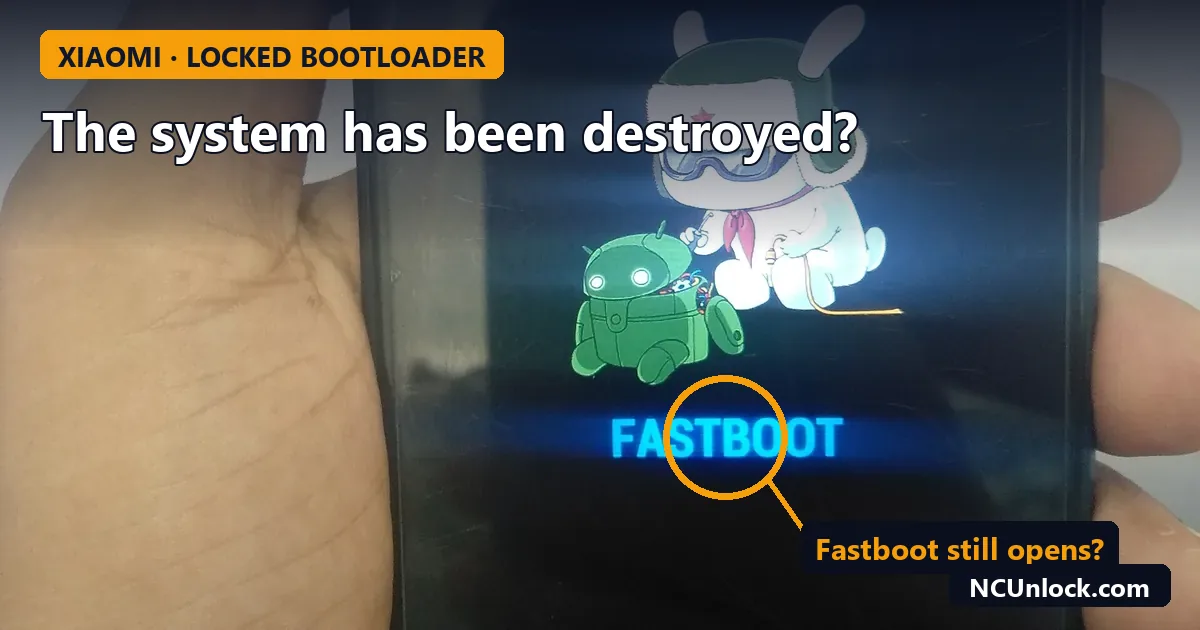
If your Xiaomi, Redmi or POCO phone shows The system has been destroyed with a single option to press the power button and shut down, the phone has refused to boot the software that is on it. It is one of the most alarming screens Xiaomi has, and one of the most misunderstood. Whether you can fix it yourself depends almost entirely on one thing: whether the bootloader is locked or unlocked right now.
This guide explains what the message actually means, the situations that cause it, and the recovery options for each case, in order from easiest to hardest. A customer asked us about this exact screen earlier this month after trying to lock the bootloader again, and it is a question we see regularly.
What “The system has been destroyed” means
When the bootloader is locked, the phone checks that the system it is about to start is official, signed software that matches the device. If that check fails, a locked Xiaomi phone does not try to boot at all. It shows “The system has been destroyed” instead.
So despite the wording, the hardware is usually fine and nothing has physically been “destroyed”. The phone is saying: the software on me does not pass verification, and I am locked, so I will not run it. That is why the message appears so often right after someone relocks the bootloader.
With an unlocked bootloader, the same broken software usually leads to a bootloop or a recovery screen instead, which is easier to fix. If you are not sure what state your phone is in, our guide on soft brick vs hard brick explains how to tell Fastboot, recovery and EDL apart.
Common causes
- Relocking with the wrong software on the phone. This is the classic cause. Someone runs
fastboot oem lock, or picks “clean all and lock” in Mi Flash, while the phone still has a custom ROM, a patched boot image (root), or a ROM from another region. - A modified or fake “Global” ROM. China phones sold with an unofficial Global ROM can boot fine while unlocked, then fail verification as soon as they are locked. We covered how these ROMs fail in HyperOS 3 bootloop on a converted Global ROM.
- A ROM for the wrong region or model. Locking a China device on a Global or EEA build (or the other way round) is a frequent trigger. An official file is not enough; it must be official for that exact device.
- An interrupted or incomplete flash. A cable dropping out or a script stopping halfway can leave partitions that fail verification.
Why do people relock in the first place? Usually to get banking apps, Google Wallet or Play Integrity working again. If that is your goal, read Play Integrity after unlocking the bootloader before you lock anything. Relocking is often not necessary, and when it is, it must only be done on untouched official firmware.
Step 1: find out what you can still reach
Stop flashing random files. Each wrong attempt can make the situation harder. First check three things:
- Fastboot. Turn the phone off (press power to shut down from the error screen), then hold Power + Volume Down. If you see the Fastboot screen, that is good news.
- Recovery. Hold Power + Volume Up. On some phones Mi Recovery still opens.
- Bootloader state. With the phone in Fastboot and connected to a PC with platform-tools installed (see ADB and Fastboot setup on Windows), run
fastboot getvar unlockedorfastboot oem device-info. Our guide how to check Xiaomi bootloader status shows how to read the output.
Your recovery options depend on the answers.
Recovery options by situation
| Situation | What usually works | Difficulty |
|---|---|---|
| Bootloader unlocked, Fastboot works | Flash the official Fastboot ROM for your exact model and region | Easy |
| Bootloader locked, Fastboot works, phone was unlocked before | Try unlocking again with Mi Unlock, then flash official firmware | Medium |
| Bootloader locked, Mi Unlock refuses | Authorized EDL flashing or Xiaomi service | Hard |
| No Fastboot, no recovery | Authorized EDL flashing or Xiaomi service | Hard |
Case A: the bootloader is still unlocked
This is the easiest case. Download the official Fastboot ROM for your exact model and region, check that it is not older than your current anti-rollback level (see Xiaomi anti-rollback explained), and flash it with Mi Flash using clean all. Do not choose “clean all and lock” until the phone has booted normally on that official ROM at least once.
Case B: locked, but Fastboot works and the phone was unlocked before
A locked Xiaomi phone will not accept a normal Fastboot flash, so the first goal is to unlock it again. Users on XDA have reported that a phone which had already been unlocked before the relock could simply be unlocked again with Mi Unlock, using the same Mi account. Whether this works for you depends on the account still being bound and on the current unlock rules for your region, which are stricter for China HyperOS devices. Our Xiaomi HyperOS bootloader unlock guide explains the current requirements.
If Mi Unlock succeeds, go back to Case A. If it refuses, move to Case C.
Case C: locked, and Mi Unlock refuses (or no Fastboot at all)
Now the only remaining route is flashing through EDL (Qualcomm 9008) or the equivalent MediaTek mode. On modern Xiaomi phones, EDL flashing requires a Xiaomi-authorized account; ordinary users cannot use it with Mi Flash alone. XDA threads on this error repeatedly reach the same conclusion: once the phone is locked and refuses to unlock, it needs an authorized flash or a Xiaomi service centre.
You have two realistic options:
- Xiaomi service centre. Best if the phone was bought in your country and is under warranty, though relocking with modified software may not be covered.
- Remote repair service. We handle bricked Xiaomi, Redmi and POCO phones remotely for many models. See our Xiaomi unbrick services for supported phones.
Be careful with “EDL bypass” tools and cheap files offered in random groups. Many are fake or malware, and a wrong firehose file can make things worse.
What about factory reset?
If Mi Recovery opens, “Wipe data” is worth one try when the phone failed after an update rather than after relocking. It will not fix a verification failure caused by non-official or wrong-region software, because the problem is the system itself, not your data.
Can you save your data?
Usually not. In this state the phone will not boot and will not give access to storage, and every working fix (unlocking, Fastboot flashing with “clean all”, EDL flashing) wipes user data. If your photos were synced to Xiaomi Cloud or Google Photos, they are safe there. Plan on restoring from a backup.
How to avoid it next time
- Only relock a Xiaomi phone when it is running untouched official firmware for that exact model and region, and has booted normally on it.
- Never relock on a custom ROM, a rooted system, or a seller-installed “Global” ROM on China hardware.
- Check the anti-rollback level before flashing any older ROM.
- If your only goal is banking apps, ask whether you really need to relock. Read is unlocking the bootloader safe? first.
- Want a proper Global ROM instead of a modified one? Use an official conversion; see our Global ROM Xiaomi services.
FAQ
Is “The system has been destroyed” a hardware failure?
Rarely. In most cases it is a software verification failure on a locked bootloader. The phone hardware is fine; it just refuses to boot software that does not match.
Can I fix it with Mi Flash on a locked bootloader?
Not with normal Fastboot flashing. A locked Xiaomi phone rejects Fastboot flashing. You need to unlock it again first, or use authorized EDL flashing.
Will unlocking the bootloader again fix it?
Often, if the phone was unlocked before and Mi Unlock accepts it. After unlocking, flash the official Fastboot ROM for your model and region. Unlocking erases all data.
Does a factory reset help?
Only in a minority of cases, such as a failed update where recovery still opens. It does not fix a mismatch between the installed ROM and the locked bootloader.
How long does a remote repair take?
It depends on the model and on whether the phone still enters Fastboot or EDL. Send us the model and a photo of the screen and we will confirm before you pay.
Stuck on “The system has been destroyed” right now? Contact NCUnlock with your exact model, the region of the phone (China or Global) and what was done before the error, and we will tell you which recovery route fits. If you also need the bootloader unlocked afterwards, see our Xiaomi, Redmi and POCO bootloader unlock services.
Featured photo: Fastboot.jpg by Foyejbd, CC BY-SA 4.0, via Wikimedia Commons (cropped).
Comments
0 comments