
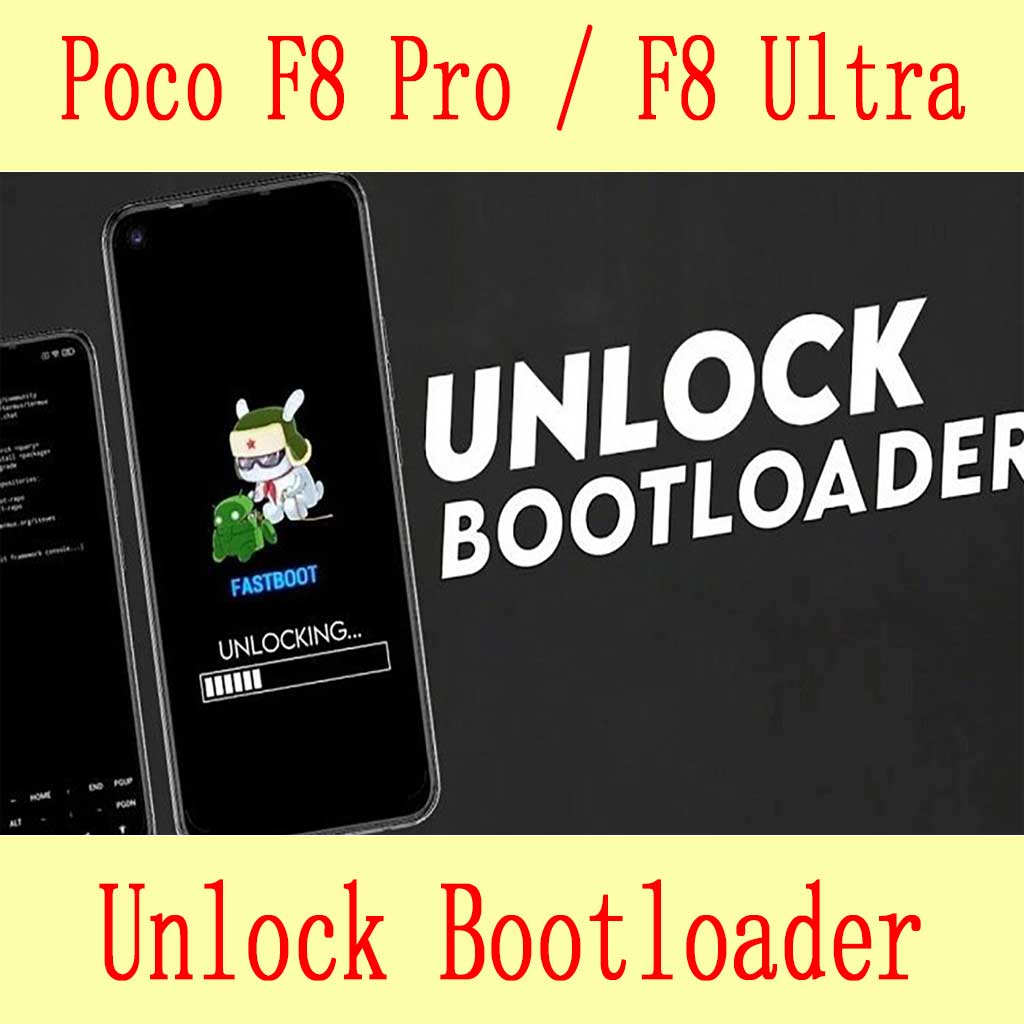
POCO F8 Pro / F8 Ultra bootloader unlock service – HyperOS
$30
Remote POCO F8 Pro and POCO F8 Ultra bootloader unlock service for HyperOS, Fastboot setup, root or custom ROM preparation, with no 7-day wait when supported.
Service process
How this remote service works
Product details
Technical Guide
Description
POCO F8 Pro / F8 Ultra bootloader unlock service
Use this service when a POCO F8 Pro or POCO F8 Ultra needs bootloader unlock for root, custom ROM, firmware testing, developer work, or HyperOS flashing.
NCUnlock checks the current Fastboot state and support status before starting the remote session. The service is remote by UltraViewer or AnyDesk; do not disconnect the phone or let the computer sleep during processing.
For the main Xiaomi/Redmi/POCO hub, see Xiaomi bootloader unlock service without 7 days. If the Xiaomi Community app blocks the request, read Xiaomi Community unlock button missing on HyperOS and HyperOS bootloader unlock quota limit reached.
Support All Global Version F8 Pro, F8 Ultra
If payment is not working please message me directly
- Sign out xiaomi account from phone (If login) >> Go to setting and sign out
- Download and install ultraviewer to pc: Here
- Conect Phone to fastboot Mode (Press and hold volume down + power button for 30 – 50s)
- Oder my services, See instructions: Here
- Send oder number + Ultraviewer (ID + PASSWORD) to me
- Wait processing
- Please ensure the computer will not sleep during the standby process. Do not turn off ultraviewer, do not disconnect the phone
Refund Policy (Unlock bootloader Poco F8 Pro / Poco F8 Ultra)
– A refund is only issued if the bootloader unlock is unsuccessful.
– Once the unlock is successful, the order is considered complete, and no refunds will be provided for any reason.
– Permanent unlocks will not relock automatically unless the user performs incorrect operations.
– We do not take responsibility in such cases.

How the remote bootloader unlock works
This service unlocks the bootloader remotely so you can install custom software, root or another ROM. Support checks the model and OS build first. Unlocking performs a factory reset, so back up your data before the session.
Steps
- Send your model details and describe the problem.
- Support confirms compatibility, scope and price.
- Install UltraViewer or AnyDesk on a Windows PC and connect the phone with a good USB cable.
- A technician completes the job remotely while you watch. You never ship the phone.
What to send
- A screenshot of Settings → About phone, or the model number from the box if the phone does not boot.
- What happened before the problem (update, flashing, root, relock) and the result you want.
Read first: Xiaomi HyperOS bootloader unlock guide and is unlocking the bootloader safe?. Questions? Contact NCUnlock on Telegram or WhatsApp.
Product details
Customer Reviews
Please log in to post a review.
Related products
-
Unbrick Xiaomi Redmi K60 Services
How to Unbrick Xiaomi Redmi K60 Services bricked (Stuck Fastboot, Boot Loop,…
-
Unbrick Xiaomi Pad 6, 6 Pro Services
How to Unbrick Xiaomi Pad 6, 6 Pro, 6 Max 14 bricked (Stuck…
-
Unbrick Xiaomi Redmi K50 Gaming (Poco F4 GT) Services
How to Unbrick Xiaomi Redmi K50 Gaming (Poco F4 GT) bricked (Stuck…
-
Unbrick Xiaomi Redmi 12 Pro Speed/POCO X5 Pro 5G Services
How to Unbrick Xiaomi Redmi 12 Pro Speed Services bricked (Stuck Fastboot,…
Reviews
There are no reviews yet.