

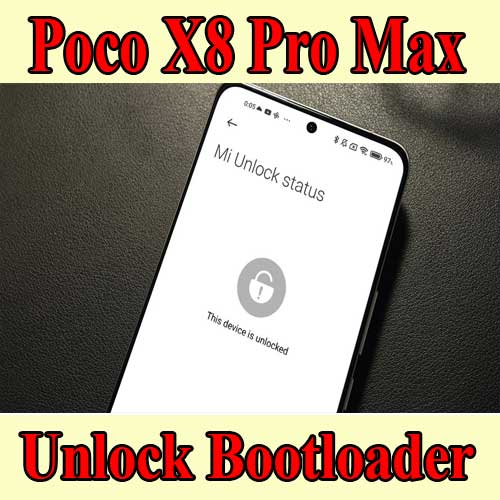
unlock bootloader Poco X8 Pro / X8 Pro Max easily with our comprehensive guide. Follow the steps for a smooth process.
Unlock Bootloader Poco X8 Pro / X8 Pro Max Without Waiting
⚡
Fast Response
Usually within 15 minutes
💬
Live Support
24/7 via chat channels
🔒
Secure Service
Trusted since 2018
📋 Your message will be sent as:
Unlock Bootloader Poco X8 Pro / X8 Pro Max Without Waiting - ONLINE/OFFLINE AND PRICE?
Price varies by device model — contact us for an exact quote.
🔓 How to Unlock Bootloader (Step-by-Step Instructions)
Step 1: Sign Out Xiaomi Account
If your device is logged into a Xiaomi account, go to:
Settings → Xiaomi Account → Sign OutMake sure the account is completely removed before proceeding.
Step 2: Install Remote Support Software on PC
Download and install Ultraviewer or AnyDesk on your computer.
Ensure the software is running properly.
Keep your PC connected to a stable internet connection.
Step 3: Enter Fastboot Mode
Power off your phone.
Press and hold Volume Down + Power button for 30–50 seconds.
The device will enter Fastboot Mode.
Step 4: Place Your Order
Order the bootloader unlock service.
Follow the instructions provided after purchase.
Step 5: Send Required Information
After ordering, send:
Your Order Number
Your Ultraviewer ID + Password (or AnyDesk ID)
Step 6: Processing
Wait while we process the unlock.
Please ensure:
Your computer does NOT go into sleep mode.
Do NOT close Ultraviewer/AnyDesk.
Do NOT disconnect the phone.
Keep the USB cable stable.
💰 Refund Policy (Poco X8 Pro / X8 Pro Max Bootloader Unlock)
A refund will ONLY be issued if the bootloader unlock process is unsuccessful.
Once the bootloader is successfully unlocked, the order is considered completed.
No refunds will be provided after successful unlock for any reason.
Permanent unlocks will NOT relock automatically unless the user performs incorrect operations.
We are NOT responsible for relocking caused by user error.
⚠️ Payment Issues?
If you experience any payment errors or issues during checkout, please contact me directly for assistance.

Reviews
There are no reviews yet.